


With the launch of Flinders’ strategy, Agenda 2035, we have some new branded assets to use with your email signatures and LinkedIn profiles.
Let everyone know that at Flinders, we will be changing 10 million lives for the better!
You can download the complete asset pack from the Agenda 2035 web page https://www.flinders.edu.au/about/strategy In this zip file you will find: email signature banners, LinkedIn profile and covers, social media tiles and a Campaign Monitor banner.
Here are some tips for creating your new Agenda 2035 look.
Email signature
*Desktop instructions for Outlook on app and browser
*Assumes you already have a Flinders University signature block. If you don’t, head to this web page to generate one. https://www.flinders.edu.au/brand/tools-templates/email-signatures/email-signature-generator
There are 3 email signature banners to choose from. Download the asset pack, save the files on your computer and decide which banner you would like.
1. Open Outlook
2. On the top navigation menu (to the left) choose File 👉 Account info 👉 Signatures
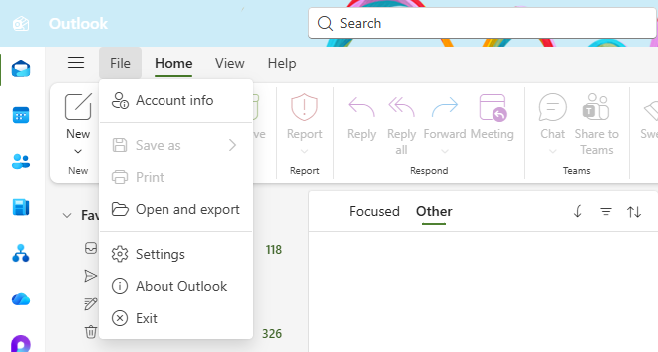
3. Select the pencil icon to Edit your signature

4. Scroll down to the bottom of your signature, and place your cursor underneath “Please consider the environment before printing this email.”
5. Select Insert 👉 Pictures – this will bring up your Download files
6. Choose your preferred file 👉 select Open – this will insert the banner in your email signature block.
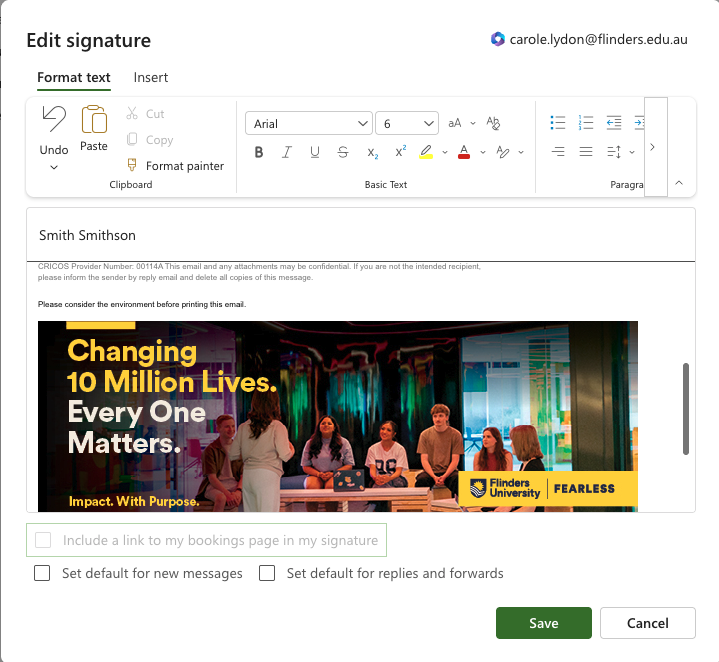
7. Check that your signature looks correct
8. Click Save
LinkedIn Cover
There are 3 LinkedIn covers and 3 LinkedIn profile images to choose from.
They are different size files. If you are updating the background to your LinkedIn profile photo, choose one of the LinkedIn Cover images. The updating procedure is the same for both.
Download the asset pack, save the files on your computer and decide which LinkedIn profile or cover you would like.
1. Open or log in to LinkedIn
2. On the top navigation bar (to the right) choose Me (directly below your profile photo icon)

3. Select View Profile
4. Select the pencil icon at the top right of the Cover section
5. Select Edit cover image 👉 Change photo – this will bring up your Download files
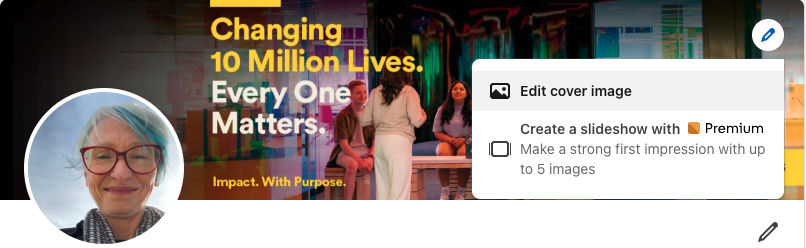
6. Then select Change photo

7. Choose your preferred file 👉 select Open – this will insert your chosen Cover image
8. Click Apply